2. Valuation
The valuation process begins when a customer clicks "Calculate Discount" to evaluate their item, continues as they review and accept the quoted offer, and concludes when they initiate order payment.
Calculate Trade-in Offer
When a customer clicks the "Calculate Discount" button on any teaser, a modal appears allowing them to select their trade-in item and answer questions to receive an offer. For most products, this process consists of three main steps:
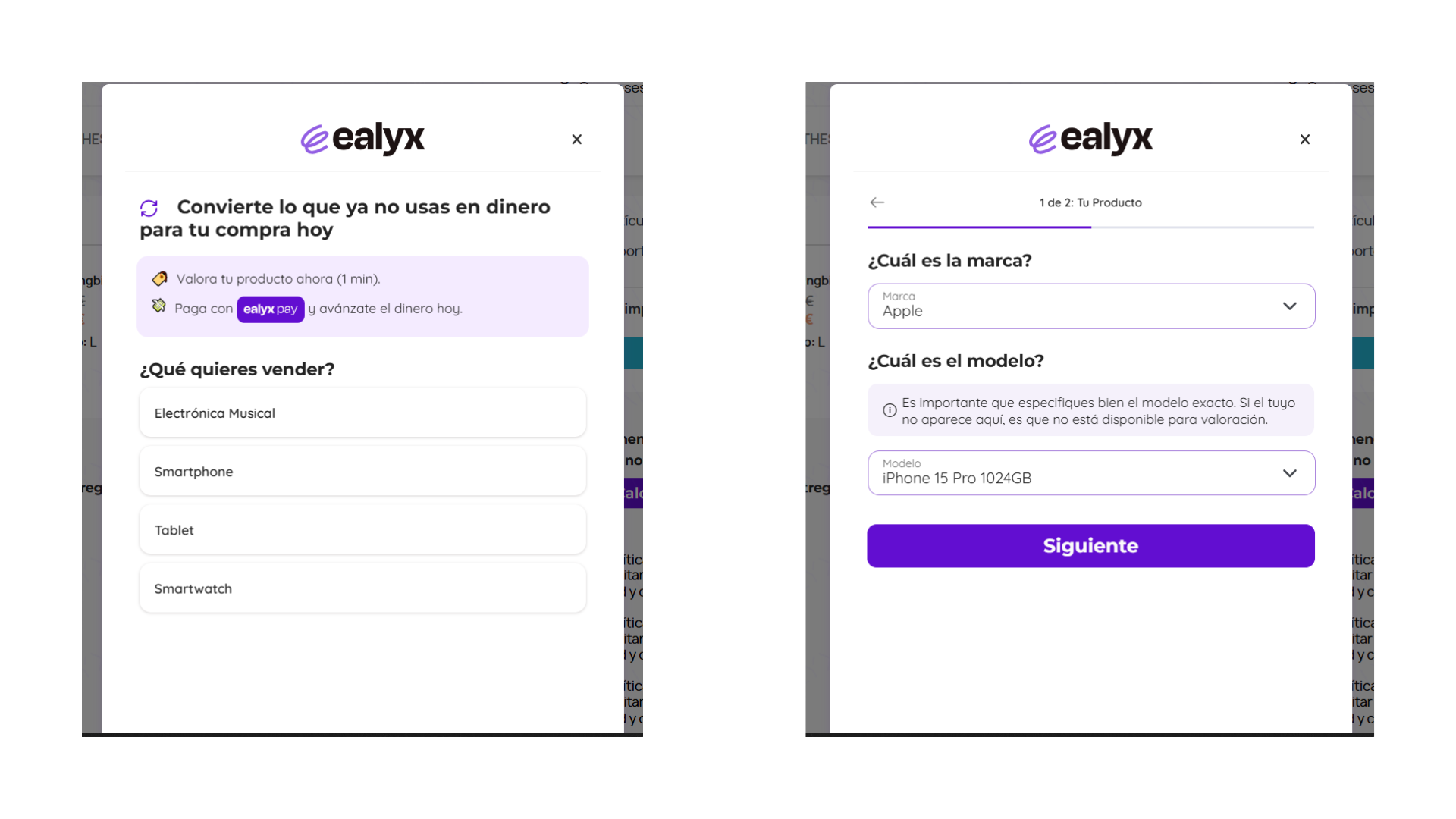
Select Category and Product
The number of categories and products available for trade-in may vary between merchants. Here's an example of this initial step:
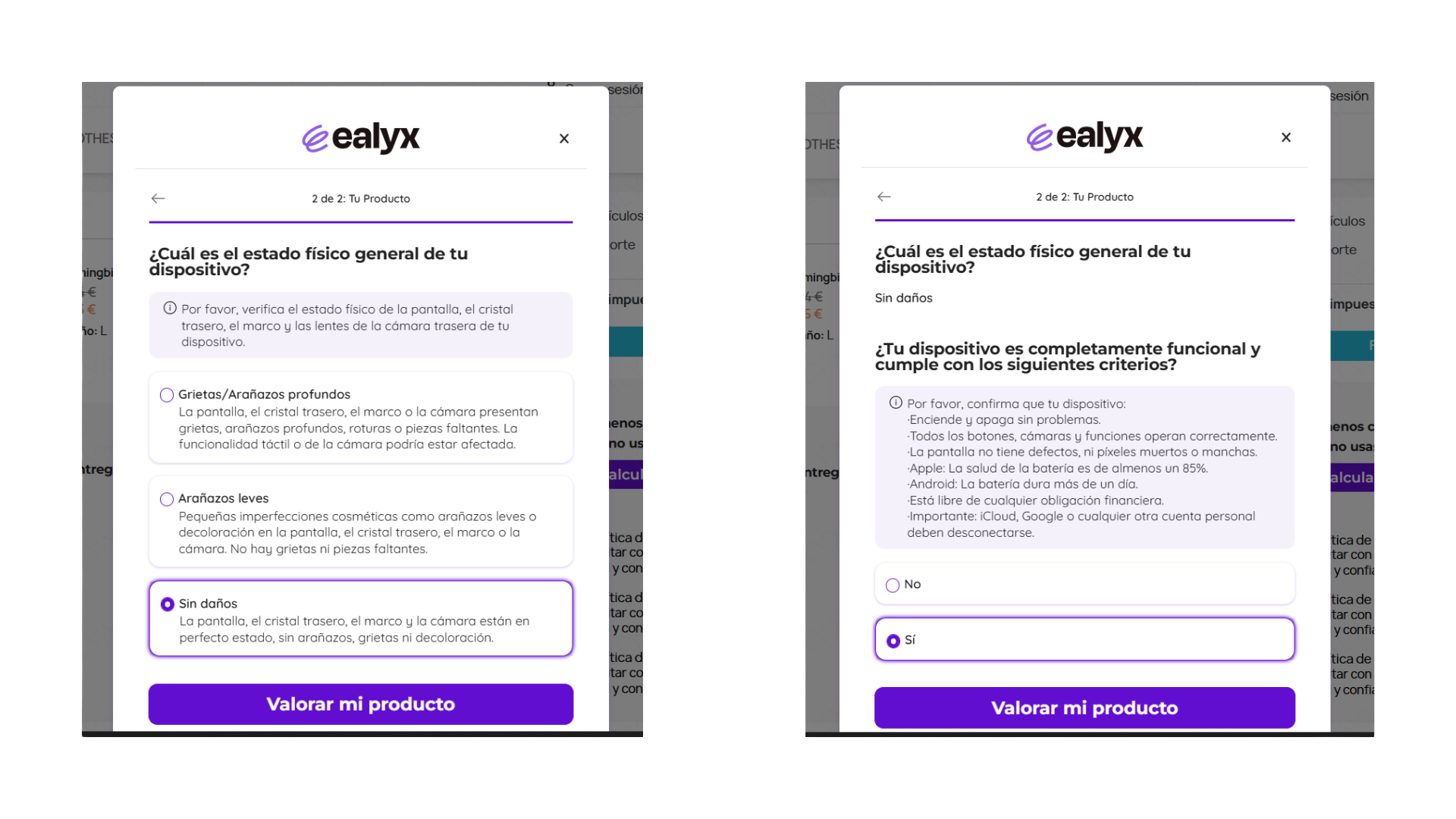
Define Product Condition
The number of questions and answers for a defined product may vary for each category or product. Here is an example of this step:
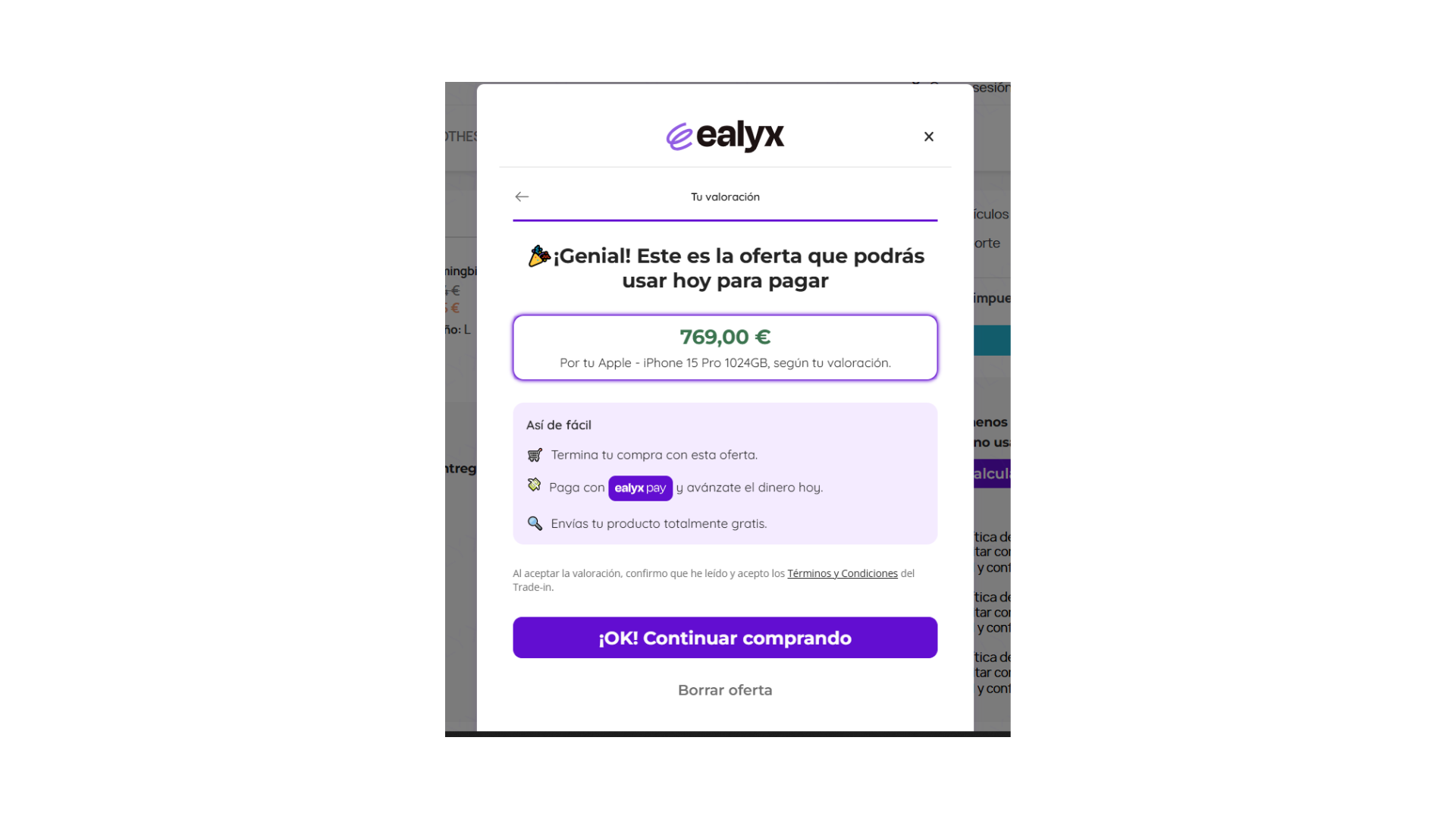
Accept the Trade-in Offer
Once product attributes and condition are defined a Trade-in offer is shown to the consumer (this offer may vary depending on multiple variables). Here is an example of this step:
Track Trade-in Offer
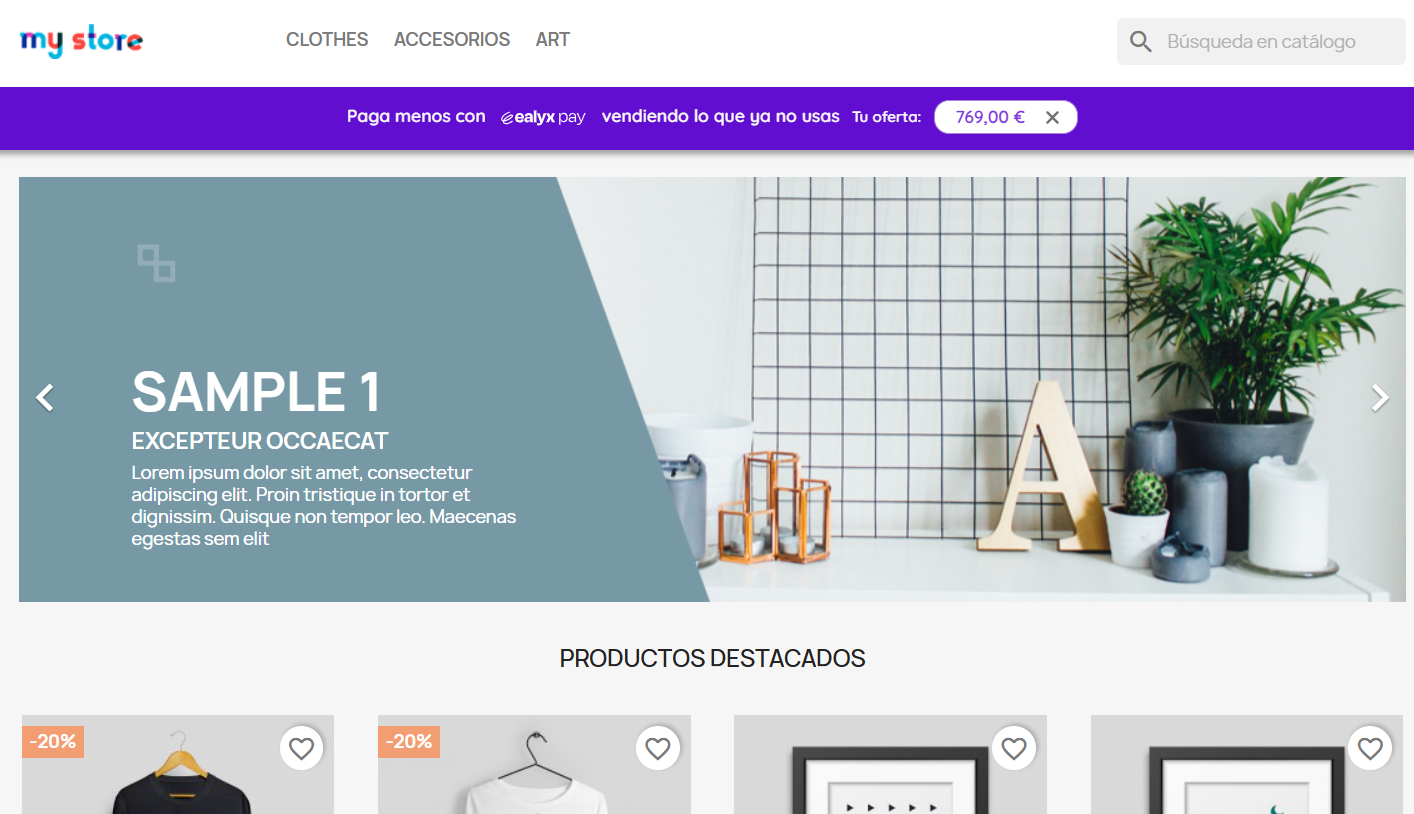
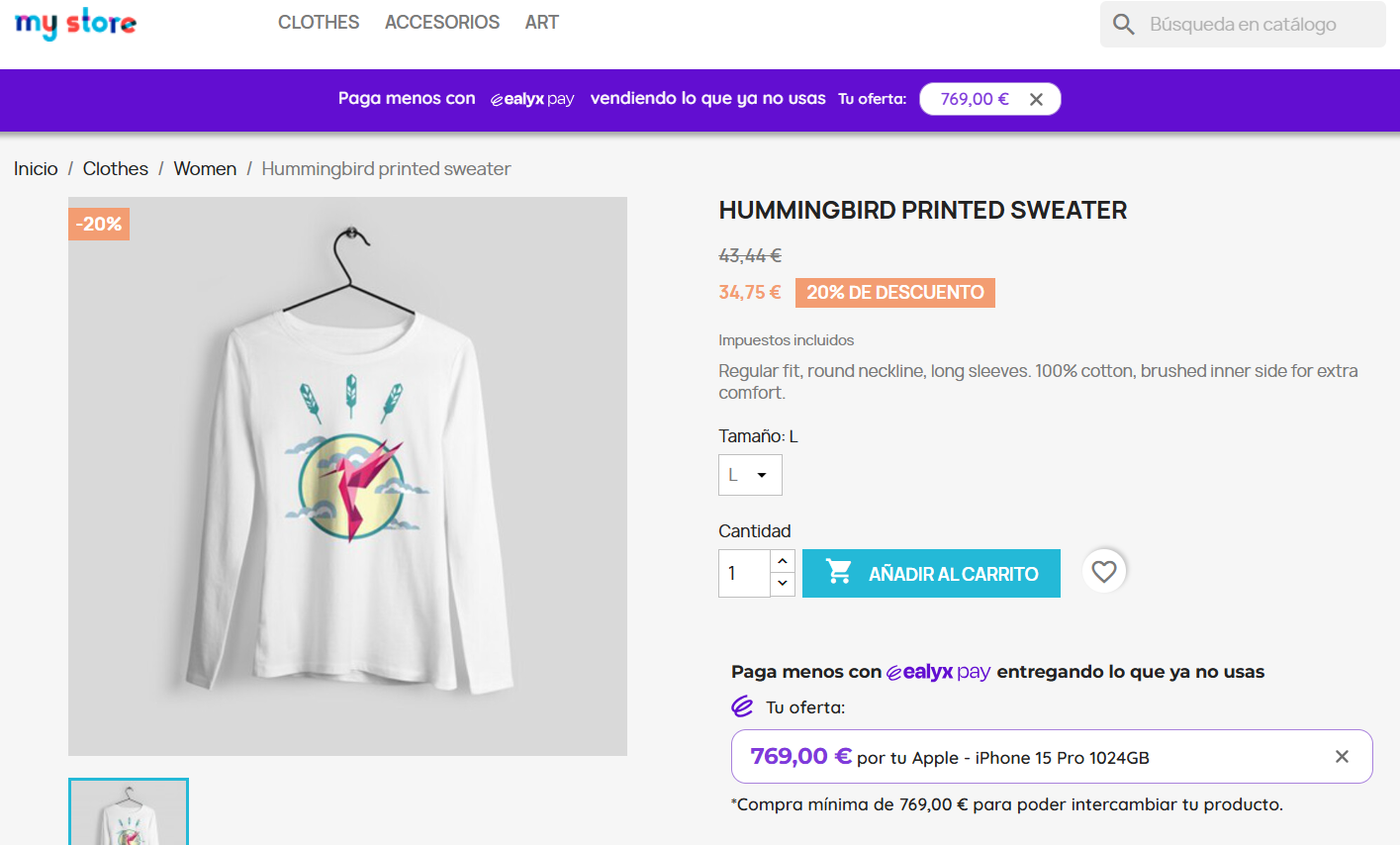
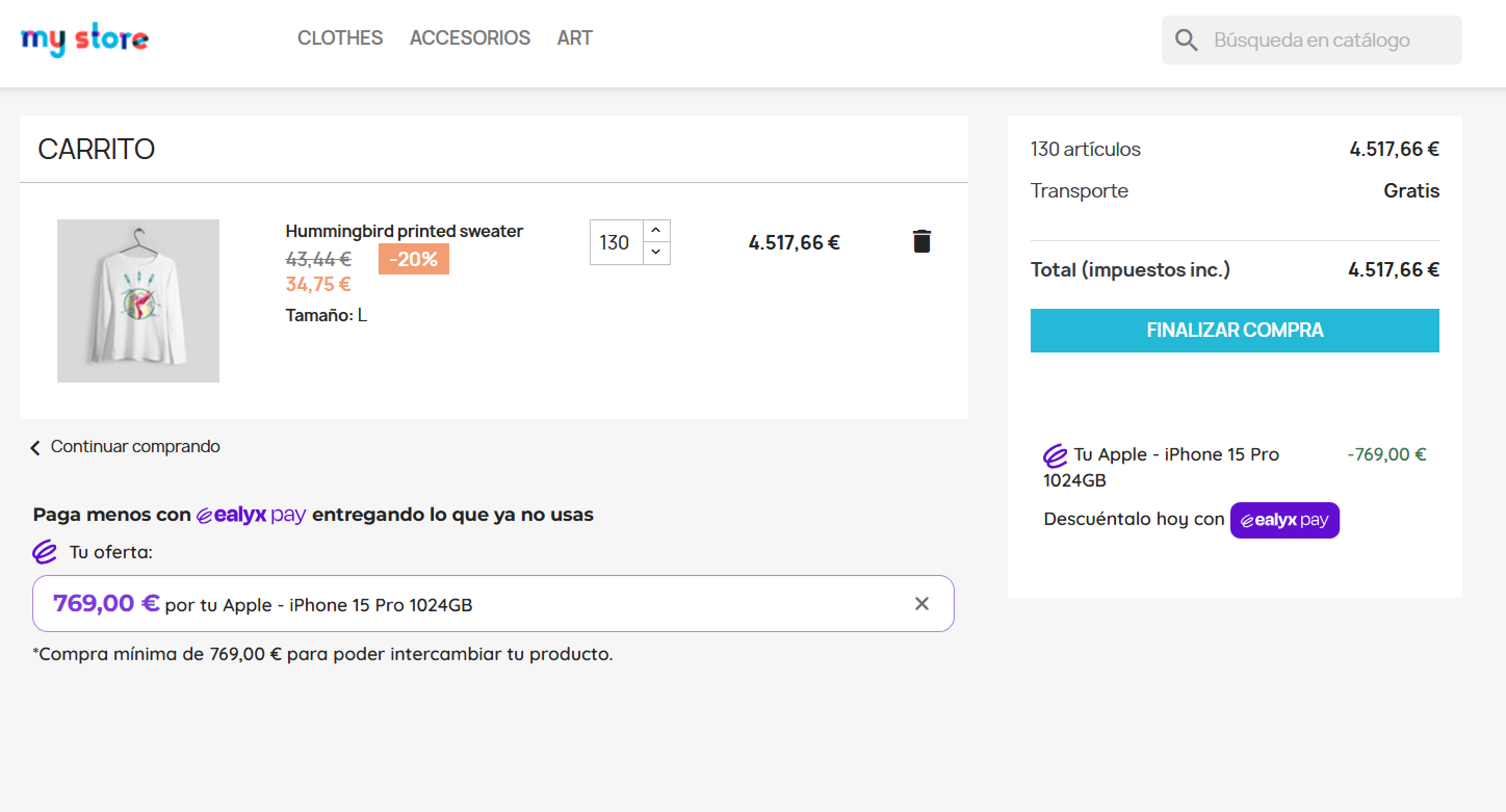
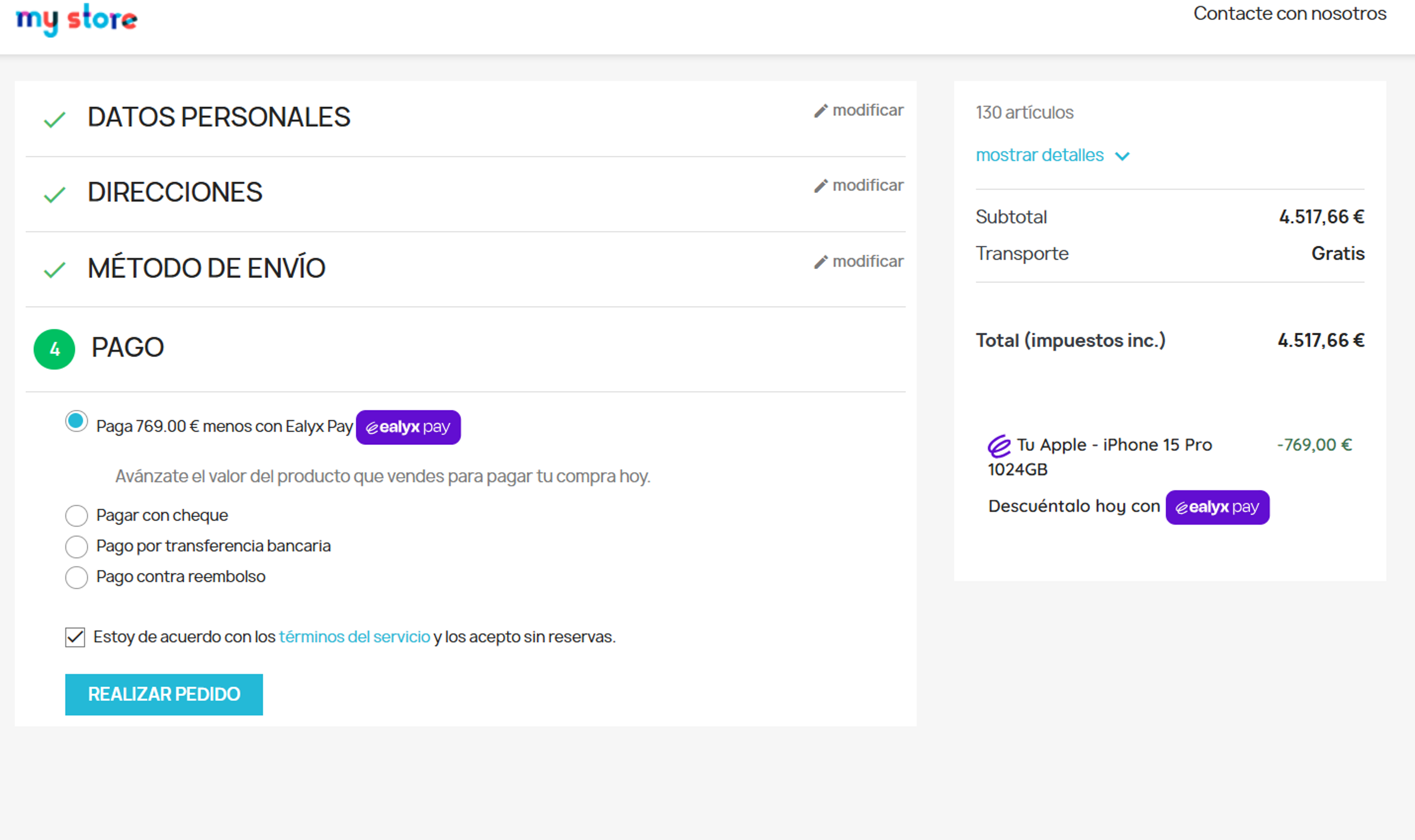
Throughout the purchasing journey, consumers with a previous valuation accepted can visualize their offer at four key steps (Home page, Product page, Cart page and Checkout page) and ensuring that the trade-in value remains traceable once a valuation is completed.
Home Page
Our advice is to place the Ealyx teaser Banner type at the top of the page.
Product Page
Our advice is to place the Ealyx teaser Banner type at the top of the page and Widget type below the "Add to cart" button.
Cart Page
Our advice is to place the Ealyx teaser Product type below "product cart" and Cart Summary type inside the "Summary" between the "Total" and "Finish purchase / Go to checkout" button.
Checkout Page
Our advice is to place the Ealyx teaser Cart Summary type inside the "Summary" between the "Total" and "Finish purchase / Go to checkout" button.
Make sure that Ealyx Pay is present at checkout also as a payment method and is displayed next to the other payment methods.
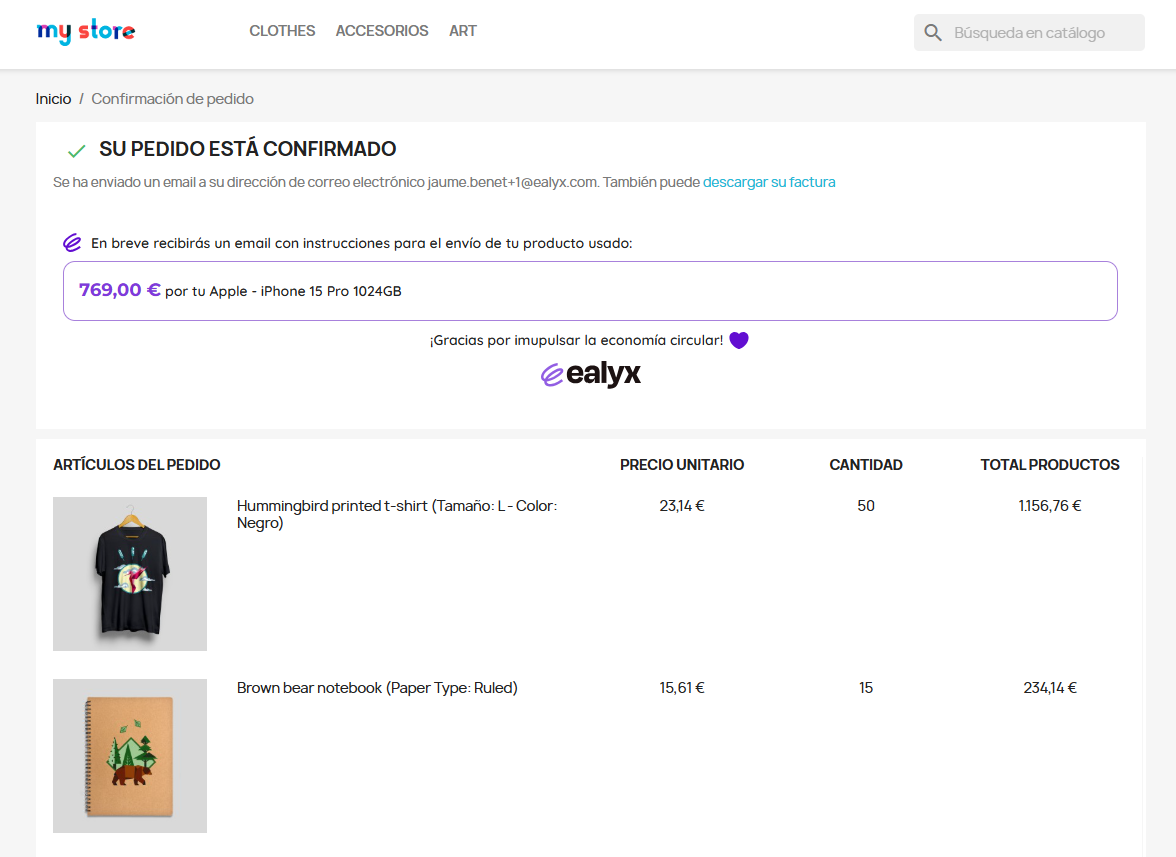
Thank You Page
Our advice is to place the Ealyx teaser Thank You type just before the "Order items" section.